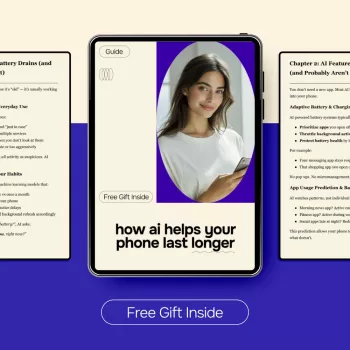
AI Battery Tips: Extend Phone Life & Protect Health
How AI Helps Your Phone Last Longer: A Smart Guide to Battery Life and Battery Health
Modern phones already use on-device intelligence to balance performance and power use. With a few practical settings and habits—plus a clear understanding of what “battery life” versus “battery health” means—AI features can reduce background drain, smooth out charging routines, and keep a device feeling fast without wasting energy.
Battery life vs. battery health: what to optimize first
Before changing settings, it helps to aim at the right target. “Battery life” and “battery health” are related, but they’re not the same.
- Battery life is how long your phone runs between charges. It’s influenced by the display, cellular and Wi‑Fi radios, app behavior, and how you use the phone day to day.
- Battery health is the long-term condition of the battery—how much capacity it can still hold and whether it can deliver peak performance. It’s influenced by heat, charge cycles, and time spent at very high or very low charge levels.
- Most AI power features focus on improving daily battery life (short-term). Charging optimization and thermal management are more about battery health (long-term).
- The biggest gains usually come from combining AI-based settings with simple habits: keep the phone cool, charge sensibly, and trim background activity.
Where AI saves power on a phone
Behind the scenes, phones use machine learning to predict what you’ll do next and allocate power accordingly. These optimizations add up because they reduce “waste”—unnecessary wakeups, background network chatter, and screen power draw.
- Adaptive app control: learns which apps are rarely used and reduces their background activity, syncing, and wakeups.
- Smart display management: adjusts brightness, refresh rate, and timeout behavior based on your patterns and ambient conditions.
- Context-aware performance: boosts CPU/GPU only when needed (camera, navigation, gaming) and returns to efficient states quickly.
- Network intelligence: shifts between Wi‑Fi and cellular more efficiently, manages 5G behavior, and limits aggressive background transfers.
- Voice and assistant features: uses low-power listening modes and on-device processing to reduce the energy cost of always-on features (especially when settings are configured well).
Common AI/automation features and what they affect
| Feature | What it optimizes | What to watch for |
|---|---|---|
| Adaptive Battery / App Standby | Background activity and wakeups | Messaging/VOIP apps may need exemptions to avoid delayed notifications |
| Optimized/Adaptive Charging | Time spent at 100% charge; heat while charging | Requires routine (overnight schedule) to work best |
| Adaptive Brightness | Display power draw | Initial learning period; occasional manual tweaks help training |
| Low Power Mode / Battery Saver | System-wide background limits | May pause background sync, location, or high refresh rate |
| 5G/Network optimization | Radio power usage | Weak 5G areas can drain faster; prefer LTE when coverage is poor |
Settings that make AI battery features work better (Android and iPhone)
AI features perform best when they’re fed consistent signals—sleep/wake patterns, stable notification behavior, and sensible permissions. A few adjustments can make adaptive systems more accurate and reduce “random” drain.
- Enable adaptive/optimized charging to reduce time spent at full charge, especially if you plug in overnight.
- Turn on adaptive brightness and set a reasonable screen timeout. The display is often the single biggest power draw.
- Review battery usage by app and restrict background activity for non-essential apps (social, shopping, games).
- Limit location permissions to “While Using” for most apps; disable precise location where it’s not needed.
- Reduce sync frequency for email and cloud backups if you notice drain (or switch to fetch/manual for low-priority accounts).
- Schedule Focus/Do Not Disturb during sleep hours to cut wakeups from notifications (which also trigger radios and screen activity).
For official platform guidance, see Android’s battery life tips and Apple’s notes on Optimized Battery Charging.
Charging habits that protect battery health (and let AI do the rest)
Even the best adaptive features can’t fully counteract the two biggest enemies of lithium batteries: heat and prolonged time at extreme charge levels. The goal is practicality—small changes that reduce stress without making daily charging annoying.
- Avoid heat: If the phone gets hot during fast charging, remove thick cases and keep it out of direct sun.
- Prefer partial cycles when practical: Frequent 0% to 100% cycles add wear compared to topping up.
- Use fast charging only when you need it: Less heat generally supports longer battery longevity.
- Turn on optimized/adaptive charging: Let the phone finish closer to your wake time instead of sitting at 100% for hours.
- Replace questionable cables/chargers: Unstable power can increase heat and charging inefficiency.
For deeper battery science, Battery University’s guidance on prolonging lithium-based batteries is a solid reference.
A quick troubleshooting flow for sudden battery drain
Smart routine: a weekly 5-minute battery check
Recommended digital downloads
- How AI Helps Your Phone Last Longer – Smart Guide to ai for optimizing your phone’s battery life, Battery Health, AI Phone Tips (Digital Download)
- The Ultimate TikTok Trend Analytics Checklist (Digital Download)
FAQ
Does AI actually improve battery life, or is it just a marketing term?
Many phones use machine learning for adaptive brightness, app standby controls, and charging optimization, and those features can reduce background drain over time. The improvement varies by usage patterns and is usually strongest when permissions, notifications, and charging schedules are set consistently.
Is it bad to charge a phone to 100% every day?
Charging to 100% isn’t “bad” in the moment, but long-term wear increases with heat and with time spent sitting at full charge. Optimized/adaptive charging can help by holding the charge below 100% and finishing closer to when you unplug.
Why does my battery drain faster after an update?
Right after an update, phones often do background work like indexing, app optimization, and syncing, which can temporarily increase drain for 24–72 hours. If it persists, check battery stats for a rogue app, restart once, and adjust background and location settings for the biggest offenders.